


BeautyCam-AI Photo Editor
3.93.28K Reviews
App Specs
- Version
- 13.2.95
- Updated On
- License
- Free
- Downloads
- 100,000,000+
- Developer
- Meitu (China) Limited
- Categories
- Photography
- Platform
- Android, iOS
Screenshots
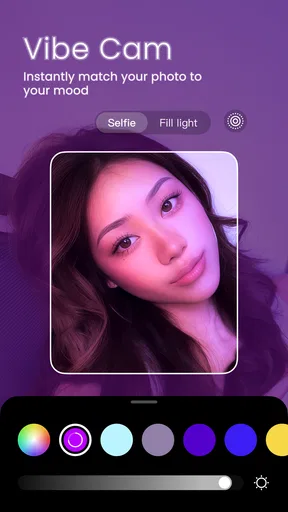
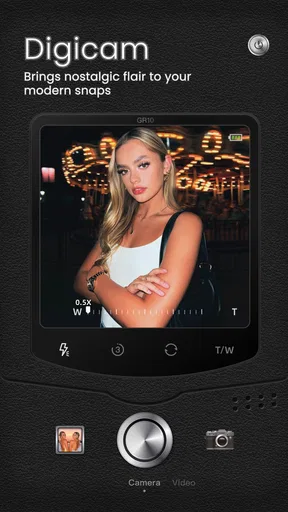
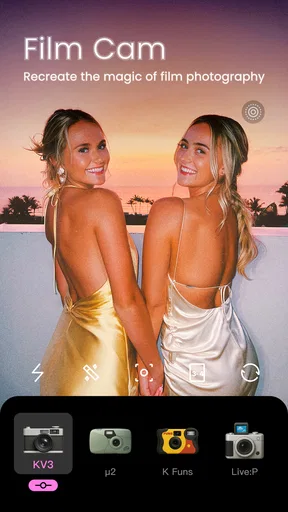
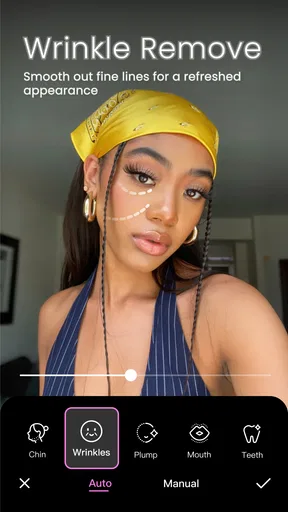
 Analysis by AppCompare
My first impression of BeautyCam-AI Photo Editor is that it is built for people who want a quick, flattering finish rather than a long session of manual editing. Its portrait tools, filters, and AI-based options make it easy to experiment, but the experience can also depend on having a reliable connection when a tool or effect needs to load. I would treat it as a handy creative option, not as a replacement for every photo app on my phone.
When a connection becomes part of editing
Editing a portrait often starts with one simple intention: soften a distraction, try a different look, or give an ordinary snapshot a mood that feels more considered. In this app, the beauty adjustments and filters make that kind of quick polish approachable. Some AI-oriented or creative options may involve network-dependent loading, so I would not assume every effect is ready instantly in every situation. If I know I will be away from a steady connection, I make my basic edits before I leave rather than relying on a last-minute effect.
That matters most when I am choosing between a simple correction and a more elaborate transformation. A filter or modest portrait adjustment is a sensible place to begin; if a feature takes longer to appear, I can still make a useful edit without building the whole workflow around it. I also prefer to compare the original and edited image before settling on a look. A strong effect can feel appealing in the moment but may not suit the lighting or expression once I see the photo at normal size.
Unpacking the Magic of BeautyCam
So, what’s the deal with BeautyCam? Well, it's not just another photo editing app; it's like having a personal glam squad in your pocket. The app is packed with tools that cater to all your beauty-enhancement needs. From smoothing out those pesky blemishes to adding some oomph to your eyes, it’s got a little bit of everything.
Features That Stand Out
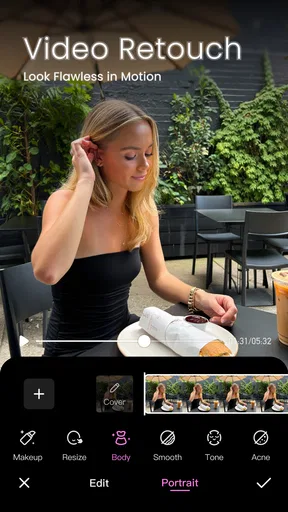
First up, let’s talk about the AI-driven beauty adjustments. This feature is pretty nifty—it automatically detects areas that could use a touch-up and works its magic without making you look like a plastic doll. It’s subtle and realistic, which is a huge win in my book.
Next, the makeup tool is a game-changer. Whether you want a full glam look or just a hint of color, BeautyCam has got you covered. It lets you experiment with different styles without committing, which is perfect if you’re indecisive like me.
And let’s not forget about the filters. There are tons to choose from, whether you’re going for a vintage vibe or a modern aesthetic. The filters are designed to enhance your photos without overshadowing your natural features.
Worth Reading Before You Choose

Baby Panda World Brings Quick Play to Modern Phones, but Its Game Library Feels Busy

ESPN’s Live Game View Makes Following Close Games Easier

QuizzLand Review: A Good Fit for Short Trivia Breaks, Not Every Player

Basketball Stars: Multiplayer Is Fast, but Can It Recover When Matches Go Wrong?

WEBTOON Turns Phone Updates Into a Better Reading Routine

Link to Windows Runs on Shared Habits, Not Social Feeds
Choosing a look without overdoing it
One useful way to work with portrait effects is to make a small change, inspect the result, and then decide whether another adjustment is genuinely needed. I find that approach more dependable than applying several beauty changes at once, because it is easier to notice when skin texture, facial details, or makeup begin to look less natural. The best result is often the one that still resembles the person in the original photo.
For a group picture or a candid shot, I would keep the treatment especially restrained. Lighting and camera angle can make people look different from one frame to the next, and a strong automatic adjustment may not suit everyone equally. For a close-up selfie, by contrast, it can be fun to test a few makeup styles and filters, then choose the combination that works with the expression and background rather than simply picking the most dramatic preview.
User Experience and Interface
One thing I really appreciated was the intuitive interface. Even if you’re not a tech wizard, navigating through the app is a breeze. The tools are clearly labeled, and there’s a handy tutorial that guides you through the basics. It’s designed to be user-friendly, so you can focus on creating stunning photos rather than figuring out how to use the app.
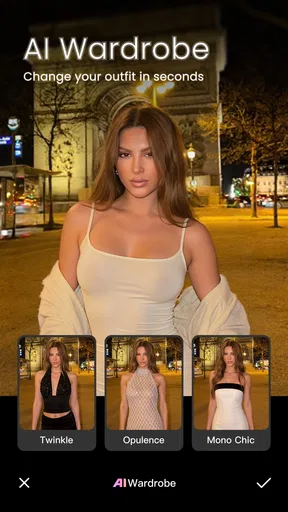
Another cool feature is the background editor. You can change up your scenery with just a few taps, adding a fun twist to your photos. Whether you want to pretend you’re on a beach or in a bustling city, the app has some creative options to explore.
A quick edit in everyday mobile situations
Imagine taking a selfie before meeting friends, then noticing that the indoor light has left the picture looking flat. I would open the portrait tools, make a light correction, preview a filter, and stop once the image still feels like the moment I remember. If I wanted a more playful version, I could test a background change separately rather than stacking it on top of every other effect. That keeps the edit easy to reverse in my own decision-making, even if I end up saving only one finished version.
On a commute or while waiting between errands, the small-screen layout is convenient for trying ideas quickly, but it is not the ideal place to judge fine detail. I would use the phone preview to choose the general mood, then look again at the result at a comfortable size before sharing it. A screen’s brightness and the surrounding light can make a filter seem softer or stronger than it really is, so a brief second look can prevent an edit that feels too intense later.
Performance and Accessibility
In terms of performance, BeautyCam runs smoothly on both Android and iOS. I didn’t experience any major lags or crashes, which is always a relief. Plus, it doesn’t hog your phone’s resources, so you can multitask without any hiccups.
The app is free to download, but there are some in-app purchases if you want to unlock additional features. However, the basic version is pretty robust, so you don’t necessarily have to spend money to enjoy what it offers.
BeautyCam is a photography app from Meitu (China) Limited, and its broad portrait-focused approach is reflected in its popularity: it has passed 50 million installs and holds an average rating of 3.9 from around 473,000 ratings. That gives a useful sense of its reach, though popularity alone does not tell me whether its editing style will suit yours. It is rated for Everyone, and version 13.0.15 is listed for devices running Android 8.0 or later. The app is free, with optional in-app purchases ranging from about 49 cents to just under 65 dollars per item, so I would check what an individual paid option includes before buying it.
Where it fits among photo editors
Compared with a general-purpose editor, BeautyCam puts more emphasis on portraits, beauty adjustments, makeup effects, and quick visual changes. That focus is a strength if most of your edits begin with a selfie. If I were correcting a landscape, carefully adjusting color across several kinds of images, or looking for a more deliberate manual workflow, I would lean toward a broader photo editor instead. A camera app’s built-in edits may also be enough when I only want a crop or a small brightness correction.
The trade-off is that a specialized portrait app can encourage me to keep adjusting a face when the photo may only need better framing or a gentler filter. I try to decide what I want the image to communicate before opening the effects: natural and clear, playful, or deliberately stylized. That small choice helps me avoid spending time cycling through options that do not improve the picture.
When an edit stalls, and how I recover
If an effect is slow to appear, I would first avoid repeatedly tapping it, since that can make it harder to tell whether the app is still processing or has stopped responding. I would give it a moment, then return to a simpler tool or revisit the edit when the connection is steadier. For an important photo, I would keep the original untouched until I am happy with the finished result, rather than treating an experiment as my only copy.
That is also why I would not plan a time-sensitive post around a complex effect I have not tested. A straightforward portrait adjustment is easier to finish in a short window; a background change or a series of looks is better left for when I have time to check the result calmly. If a particular tool is not behaving as expected, switching to a basic filter can still produce a presentable image without turning a quick edit into a frustrating one.
Making a sensible choice about time and spending
For casual use, I would start with the free experience and learn which tools I actually return to. Optional purchases can add cost, and the listed range is wide enough that I would inspect the specific item rather than assume every extra is a small one-time upgrade. If my needs are limited to occasional selfies, there is little reason to buy anything before I have tried the regular workflow and decided that a particular feature solves a real problem for me.
I also think about how much of an image I want to alter before I begin. A filter changes the overall mood, while face-focused adjustments can change how a person appears; a background edit changes the scene itself. Keeping those choices separate makes it easier to get a result I am comfortable sharing. For family pictures, work profiles, or any image where accuracy matters, I would favor subtle edits and avoid a heavily transformed look.
Who will enjoy it, and who may prefer another tool
I would recommend it to someone who often takes portraits on a phone and wants an approachable way to test flattering adjustments, makeup looks, filters, or a different background. It is especially appealing when the goal is a polished social photo rather than a detailed retouching project. The quick visual experimentation makes it easy to explore a style without committing to it in real life.
I would skip it if I rarely edit faces, prefer precise manual control, or want one editor for every kind of photography. Someone who edits product shots, scenery, or images requiring consistent technical adjustments may be better served by a general photo editor. I would also be cautious if I need every creative option to be immediately available regardless of connectivity; the experience is more comfortable when I can work at a steady pace and revisit a feature if it takes time to load.
Wrapping Up My Thoughts
Overall, I’d say BeautyCam-AI Photo Editor is a solid choice for anyone who loves photo editing and beauty enhancements. It combines powerful tools with an easy-to-use interface, making it accessible for everyone, whether you’re a newbie or a seasoned pro.
If you’re curious and want to try it out for yourself, just head over to the app store and give it a whirl. It might just become your new go-to for all things photo editing!
Pros
- User-friendly interface for quick edits.
- Wide range of AI filters and effects.
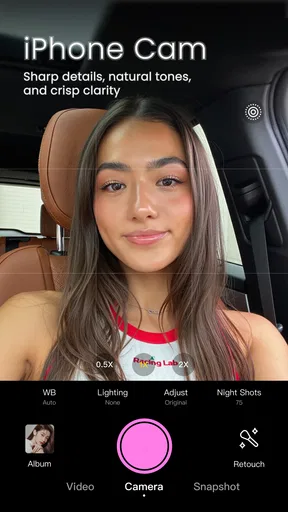
- Real-time beauty camera features.
- Frequent updates with new tools.
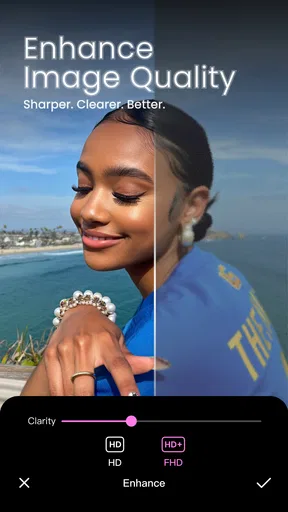
- High-quality output images.
Cons
- Contains in-app purchases for premium features.
- Some features require an internet connection.
- Occasional ads may interrupt editing.
- Limited free storage for edited photos.
- AI filters can be overly dramatic.
FAQs for BeautyCam-AI Photo Editor
What features does BeautyCam-AI Photo Editor offer?
BeautyCam-AI Photo Editor provides a range of advanced features like AI-powered enhancements, skin smoothing, blemish removal, and makeup application. It also includes filters, stickers, and backgrounds to transform any photo creatively. The app aims to deliver professional-quality edits with user-friendly tools suitable for both beginners and experienced users.
Is BeautyCam-AI Photo Editor free to use?
BeautyCam-AI Photo Editor offers a free version with basic features, allowing users to experience its core functionalities. However, it also provides a premium subscription that unlocks advanced tools and exclusive content, such as high-end filters and effects. Users can choose the plan that best fits their editing needs and budget.
How does the AI technology in BeautyCam enhance photos?
The AI technology in BeautyCam intelligently analyzes each photo to apply enhancements that bring out the best in your images. It can automatically adjust lighting, color balance, and facial features, making subtle or dramatic improvements. The AI ensures edits look natural, enhancing beauty while preserving the unique characteristics of the subject.
Is BeautyCam-AI Photo Editor suitable for professional use?
While BeautyCam-AI Photo Editor is primarily designed for casual users, its wide range of advanced features makes it suitable for some professional applications. Photographers and social media influencers may find the AI enhancements and high-quality filters useful for quick edits. However, for extensive professional editing, dedicated software might be more appropriate.
Are there privacy concerns with using BeautyCam-AI Photo Editor?
BeautyCam-AI Photo Editor prioritizes user privacy by ensuring that photos and personal data are protected. The app typically requires access to your camera and gallery to function, but it does not store or misuse your personal information. Users are encouraged to review the privacy policy to understand how their data is handled.


